Get the timing right
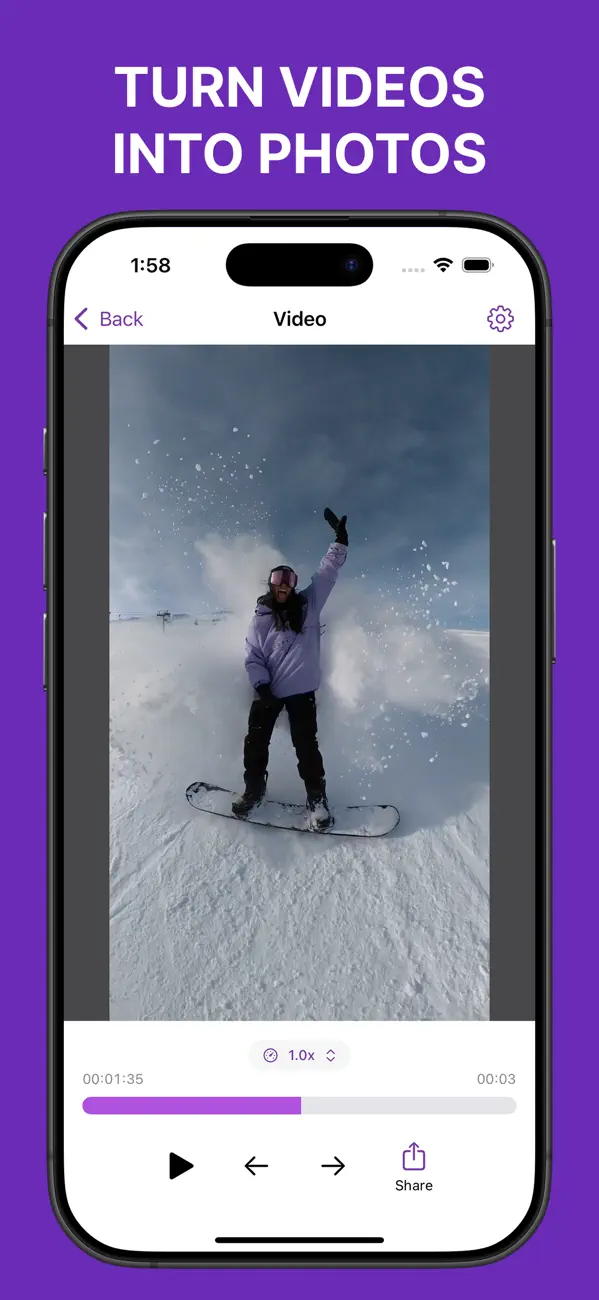
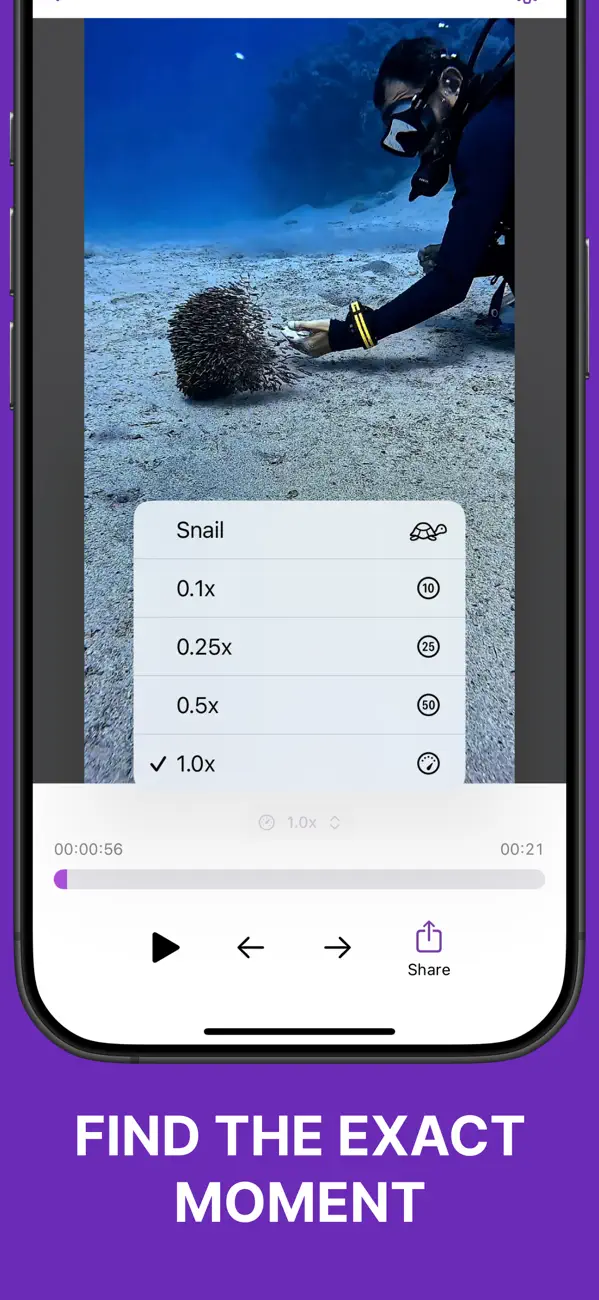
Drag through the video to get close, then step forward or back until you've found the expression or movement you wanted.

Save a photo from any video or Live Photo
Sometimes the best photo is hiding between two frames of a video. Frame Grabber lets you move through it one frame at a time, then save the one you want without player controls getting in the way.



Why it helps
A screenshot only captures what's on the screen, including its size and anything layered over it. Frame Grabber reads the frame from the original video instead, so you get a separate image that's ready to keep or share.
Drag through the video to get close, then step forward or back until you've found the expression or movement you wanted.
Use JPEG when you want broad compatibility, HEIF for a smaller file, or PNG for lossless output.
When the source includes them, you can carry over the date and location. The video itself isn't changed.
How it works
Open a video or Live Photo from your library. It doesn't need to be uploaded anywhere.
Use the timeline to get close, then move one frame at a time to make the final choice.
Pick a file format and quality, then save the image to Photos or share it with another app.
Blog
Compare an iPhone video screenshot with a frame extracted from the source file, including resolution, controls, cropping, and export options.
Read post best video resolution for still photosLearn how 1080p and 4K video affect the size and usefulness of still frames saved as photos.
Read post JPEG vs HEIF vs PNG for video framesChoose between JPEG, HEIF, and PNG when saving a still frame from an iPhone video.
Read post save Live Photo frame without changing originalBrowse the movement in a Live Photo and save another moment as a separate image while keeping the original intact.
Read postFAQ
You can open regular videos and Live Photos from your iPhone photo library.
No. It exports the selected frame from the source video, so playback controls and other screen elements are not included.
You can save a frame as JPEG, HEIF, or PNG and adjust the quality for JPEG and HEIF files.
No. Frame Grabber processes your videos and Live Photos on your device.
Available on the App Store
Our collection


